


Your AI SaaS business, ready by this week!
Try demoHow to Handle Taxes on Your AI SaaS Platform
Published Apr 18, 2026 ⦁ 8 min read
Your AI SaaS business, ready by this week!
Try demoPublished Apr 18, 2026 ⦁ 8 min read
Aikeedo v4 ships a full tax infrastructure layer. Here is how it works, which option fits your setup, and how to get tax collection right from day one.
Most people building an AI SaaS business spend a lot of time thinking about pricing, model selection, and customer acquisition. Tax compliance tends to get pushed to the bottom of the list — until the first payment goes through and a customer asks why their receipt shows no VAT.
The reality is that if you are running a subscription business and charging real customers, you are probably obligated to collect some form of tax in at least some of the markets you serve. Getting that wrong is expensive — both in terms of back-taxes and in terms of the trust you lose with customers who expect their charges to reflect local tax rules.
Aikeedo v4.0 ships a full tax infrastructure layer designed to address this properly. Here is how it works.
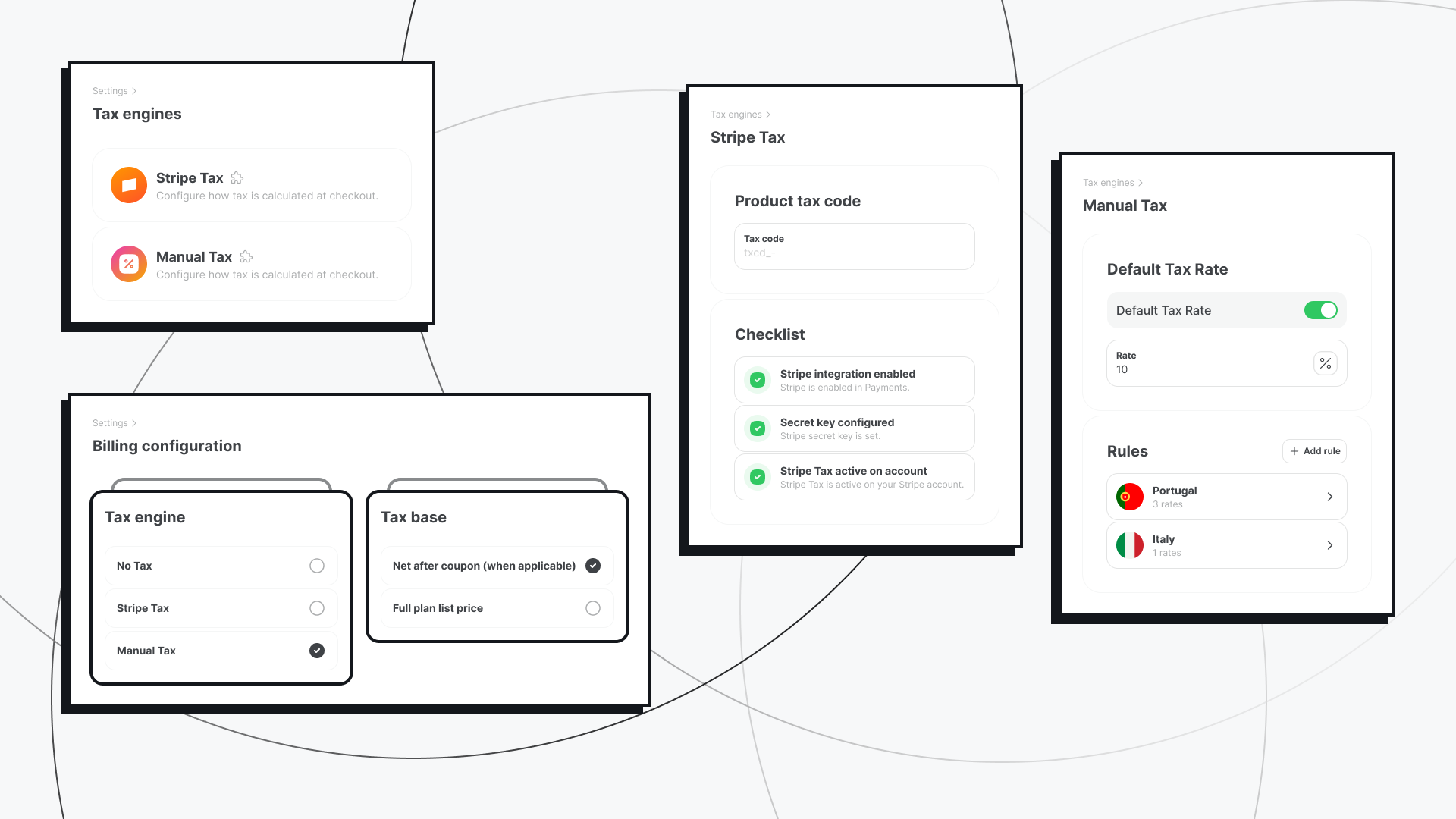
The v4 tax infrastructure is built at the core platform level. That means it is not bolted onto a specific payment gateway — it is a shared foundation that any payment integration can use.
On top of that foundation, v4 ships two plugins for tax calculation, and one additional feature for tax collection within Stripe's hosted checkout flow.
These are distinct concerns worth understanding separately:
Both are covered in v4. For a full overview of how the tax layer is structured, see the Tax Engines documentation.

The Manual Tax Engine gives you direct, full control over how tax is calculated. The configuration has two layers.
The first is a Default Tax Rate — a global fallback that applies whenever a customer's billing address does not match any specific rule you have defined. This can be set as a percentage or a fixed amount, and can be disabled entirely if you prefer not to tax customers in uncovered regions.
The second layer is Rules — country-level (and optionally state-level) overrides. Each rule can include multiple rates that stack together. For example, a country rule might include a VAT percentage, a customs percentage, and a fixed handling fee — all applied in combination to a single purchase. You can also set a rule to zero to explicitly exempt a specific country, even if a default rate is active.
This makes the Manual Tax Engine more capable than it might first appear. It is not just a single global rate — it is a default rate with per-country exceptions, which covers a wide range of real-world tax structures.
The tradeoff is that you are responsible for keeping the configuration accurate. Tax rates change, new regulations appear, and the plugin has no way to detect that. For operators selling in a small number of known markets with stable rates, this is manageable. For those selling across many jurisdictions where rates shift frequently, the maintenance overhead adds up.
Full configuration details are in the Manual Tax documentation.

The Stripe Tax plugin takes the opposite approach: you connect it to your Stripe account and let Stripe determine the correct tax rates automatically.
Stripe Tax maintains up-to-date tax rate data for a large number of jurisdictions worldwide. When a customer checks out, Stripe evaluates the customer's location and the applicable rules — and applies the right rate. You do not have to maintain a rate table or track regulatory changes yourself.
The one configuration option on the Aikeedo side is a product tax code — an optional field that tells Stripe what category of product you are selling (for example, SaaS software), so it can apply the correct tax treatment. If you leave it blank, Stripe falls back to the default tax code you have set in your Stripe Dashboard.
Before the plugin will work, three conditions need to be met: Stripe must be enabled in your Payments settings, your Stripe secret key must be configured, and Stripe Tax must be active on your Stripe account. The plugin's admin page includes a checklist that shows the status of each requirement.
This is the better fit for platforms that sell to customers across multiple countries and want to reduce ongoing compliance overhead as they scale. Importantly, the Stripe Tax plugin is not limited to Stripe payments — it is a calculation engine that works independently of which payment gateway your customers use to complete their purchase.
The plugin handles calculation only — determining what rate applies. Aikeedo passes the calculated tax to whichever payment gateway is being used, and that gateway charges it as part of the payment. For gateways that support separate tax line items, the tax appears as a distinct line at checkout. For those that do not, the tax amount is added to the total charge.
Full setup instructions are in the Stripe Tax documentation.
Regardless of which tax engine you use, there is a separate Tax base setting in Billing configuration that controls what amount tax is calculated on. There are two options.
Net after coupon — tax is calculated on the plan price after any coupon discount has been applied. If a customer uses a 20% off coupon, their tax is calculated on the discounted amount. If no coupon applies, the full list price is used.
Full plan list price — tax is always calculated on the original list price, regardless of any active coupon.
Which one is correct for your situation depends on local tax rules and how your accountant has structured your pricing. In many jurisdictions, tax is applied after discounts — but not all. Get confirmation from a tax professional before setting this, especially if you run active coupon campaigns.
For operators using Stripe Hosted Checkout — the checkout page served by Stripe rather than embedded in your platform — v4.0 adds a separate feature: Stripe Automatic Tax Collection.
This is Stripe handling both calculation and collection end-to-end, entirely within the Stripe checkout flow. When a customer reaches the checkout page, Stripe determines the applicable tax, displays it to the customer, and collects it as part of the payment.
For the best experience, this feature should only be enabled when two conditions are met: no other tax engine (Manual Tax or Stripe Tax) is selected, and Stripe is the only active payment gateway on your platform. If other payment gateways are also enabled, customers who pay through them would go through a different checkout flow without tax applied — creating an inconsistent experience. And if a tax engine is already active, the two would conflict.
The main decision is between automated calculation (Stripe Tax) and manual configuration (Manual Tax Engine). Your payment gateway is a separate concern — both tax engines work with any payment gateway supported by Aikeedo.
If your customer base spans many countries or regions: Use the Stripe Tax plugin. It handles rate determination automatically across jurisdictions, stays current without any input from you, and works regardless of which payment gateway your customers use. You will need a Stripe account with Stripe Tax enabled for the calculation API — even if Stripe is not your primary payment gateway.
If you sell in a small number of known markets with stable rates: The Manual Tax Engine is simpler to set up and requires no external account. Define a default rate and add country-level rules for the markets you operate in. A default rate plus a handful of country rules covers most straightforward setups.
If you use Stripe Hosted Checkout as your only payment gateway: You have an additional option — Stripe Automatic Tax Collection, which handles both calculation and collection entirely within Stripe's checkout flow, without any separate tax plugin required. This only makes sense when Stripe is the sole payment option and no other tax engine is active; otherwise tax handling becomes inconsistent across checkout paths.
Aikeedo's tax layer handles the technical side — calculating the correct rate and instructing your payment gateway to charge it. What it does not do is tell you which markets you are required to register in, when registration thresholds apply, or how to file returns.
Those are questions for an accountant who specializes in SaaS tax compliance. If your platform is growing and you are starting to see customers from multiple countries, it is worth getting that advice before the compliance obligations pile up.
The infrastructure is in place. Using it correctly for your specific situation is still your responsibility — but at least the platform is no longer the obstacle.
If you are on Aikeedo v4.0, head to the Aikeedo Marketplace and install whichever tax plugin fits your setup. Configuration instructions are available in the documentation: Tax Engines overview, Manual Tax, and Stripe Tax.
If you are evaluating Aikeedo and tax compliance is a consideration — it should be — you can explore the platform on the live demo or review what is included at our pricing page.
Discover more on related topics that might interest you